

Agent Development Through Natural Language
Use natural language to go from idea → working agent → deployed experience in minutes.Airia’s Build Agents with AI capability lets you describe what you want in plain language while an AI-powered builder plans, assembles, and iterates your agent directly in Agent Studio. At a high level, the flow looks like this:
- Describe & Plan – Tell the AI what you’re trying to achieve in plain language.
- Build & Iterate – Watch the AI assemble the workflow on the visual canvas and refine it with you.
- Test & Deploy – Try it, fix it, and ship it—using the same AI to improve what you already have.
How it Works
1. Describe & Plan
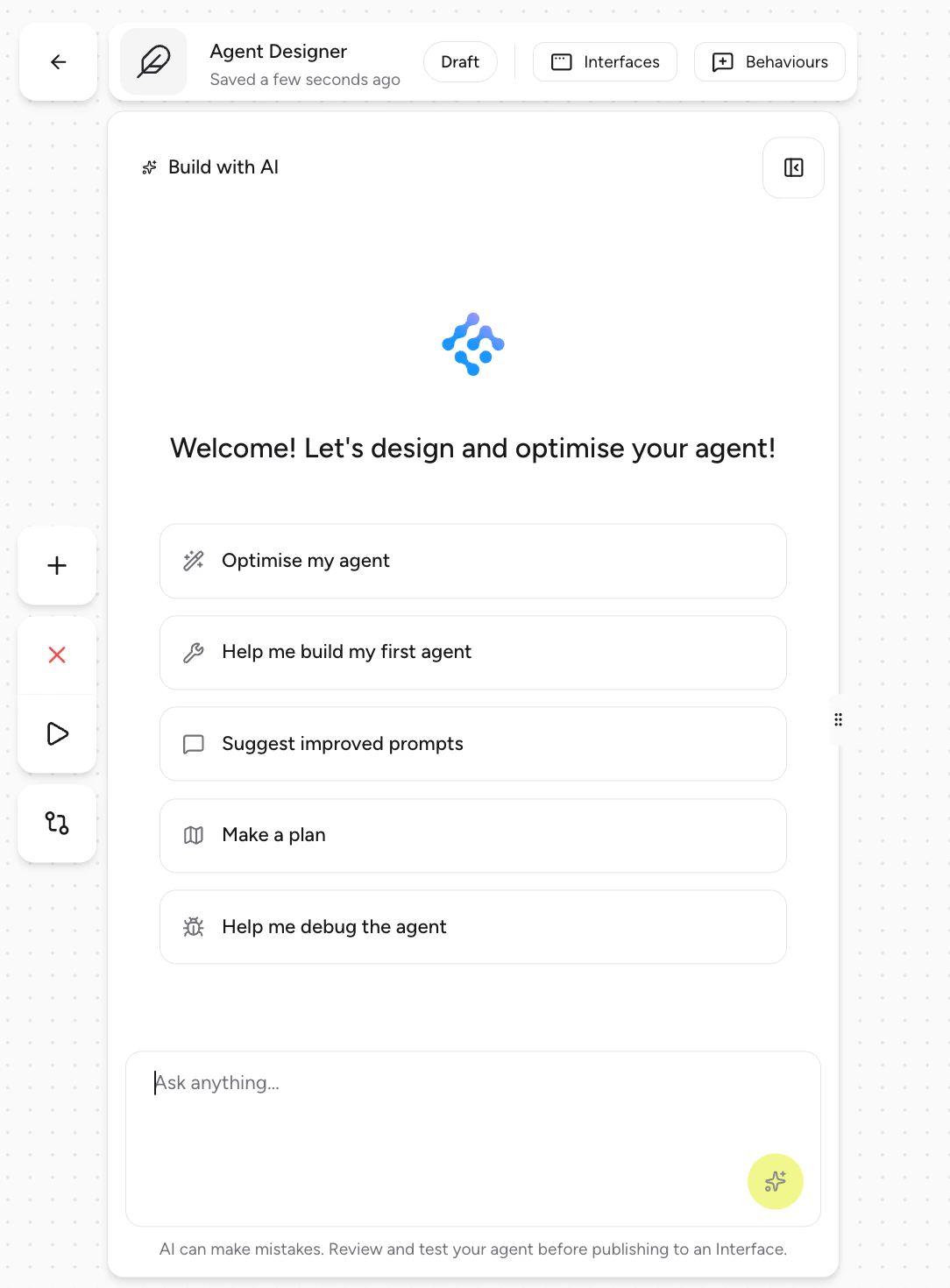
- Your goal (e.g., “Qualify inbound leads and create tickets in Jira.”)
- Any systems it should connect to (e.g., Jira, Slack, your internal APIs)
- Relevant constraints (e.g., handoff rules, approval steps, routing logic)
- Ask clarifying questions when needed
- Provide feedback on your idea (feasibility, gaps, edge cases)
- Generate a structured plan for the agent workflow tailored to your use case
- “I want an agent that triages customer support requests and routes them by priority.”
- “Help me design an agent that collects product feedback and creates Jira tickets.”
2. Build & Iterate
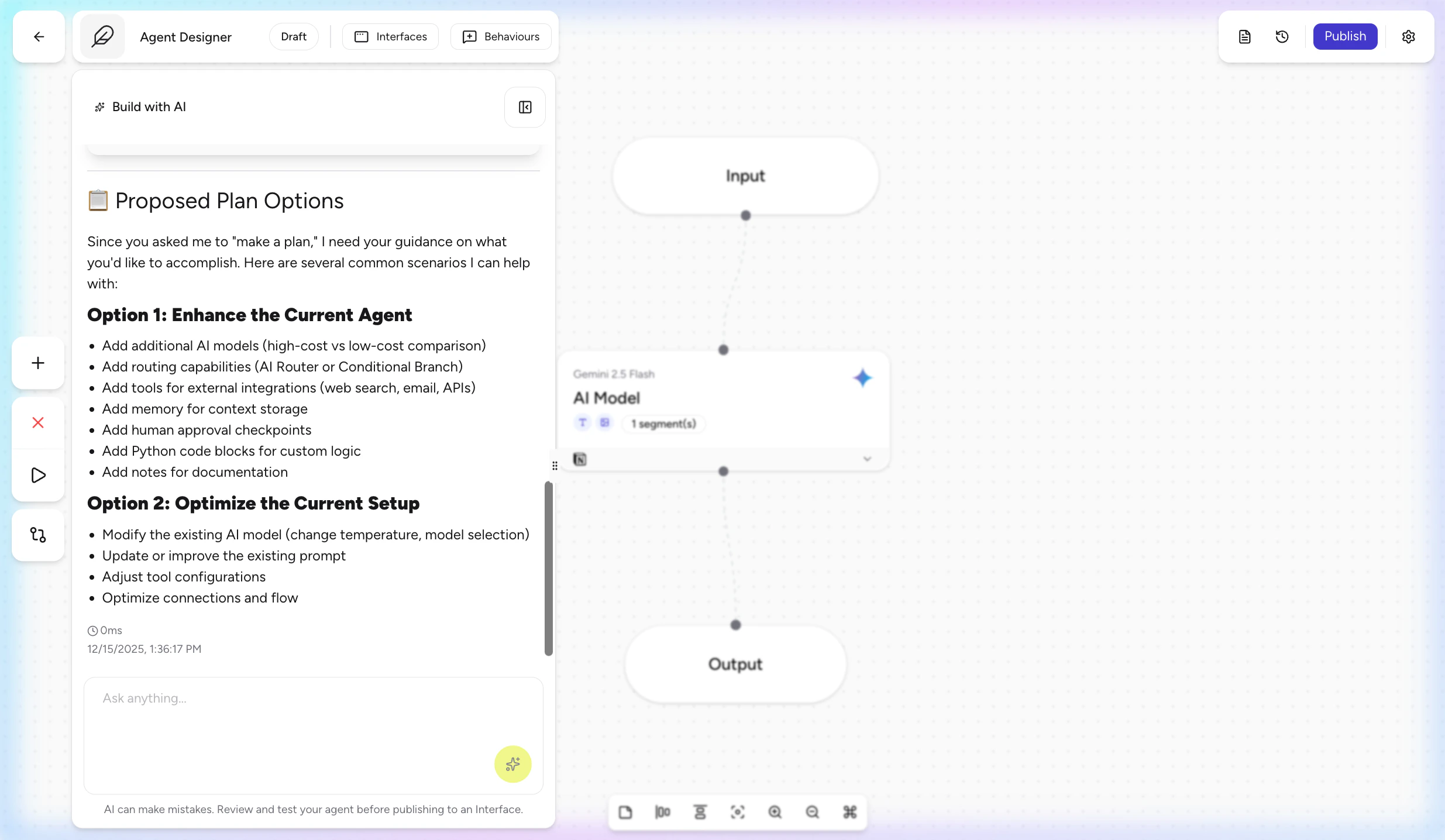
- Autonomously creates and configures steps on the visual canvas in real time
- Adds AI model blocks, tool actions, routing logic, and memory
- Can incorporate Python steps to support more advanced behaviors
- AI model integration (OpenAI / Anthropic models preconfigured for your project)
- Tool actions (e.g., Jira, Slack, HTTP calls, internal APIs)
- Branching and routing logic
- Custom Python steps
- Memory and context configuration
- “Add a fallback branch if Jira is unavailable.”
- “Log every error into this data source.”
- “Split high-priority issues into a separate path.”
ℹ️ Note
While the Build with AI chat is building or editing your workflow, the canvas is temporarily locked for manual edits to avoid conflicting changes.
3. Test & Deploy
Once the agent is built:- Test the agent directly from Agent Studio using your own example inputs.
- Ask the AI to review and suggest improvements:
- “Suggest areas of improvement for this agent design.”
- “How can I improve my existing prompts for better response quality?”
- Deploy the agent once you’re satisfied with how it behaves.
- Review routing and error handling
- Suggest prompt improvements
- Propose additional steps or guardrails
- Troubleshoot failed executions and offer fixes
Why This Matters for Enterprise Teams
Enterprise teams still struggle to turn business goals into reliable AI agents:- Business objectives are hard to translate into agent workflows.
- Many agents end up being poorly structured and difficult to maintain.
- Teams depend heavily on specialized AI engineers for even small changes.
- Non-technical users are blocked or forced to work through long handoff cycles.
- Removing the steep learning curve of new AI platforms
- Automatically structuring reliable workflows that follow Airia best practices
- Reducing dependency on specialized AI developers for day-to-day work
- Empowering business users to create and adjust agents without deep technical expertise
Availability & Access
Feature Name
- Tenant setting: Build Agents with AI
- In Agent Studio: Build with AI chat
Current Access Model
- The feature is disabled by default at the tenant level.
- Only the following roles can enable or disable the tenant setting:
- Platform Admin
- Admin
- Once enabled, any user who can access Agent Studio can use Build with AI in draft mode (subject to their existing Agent Studio permissions).
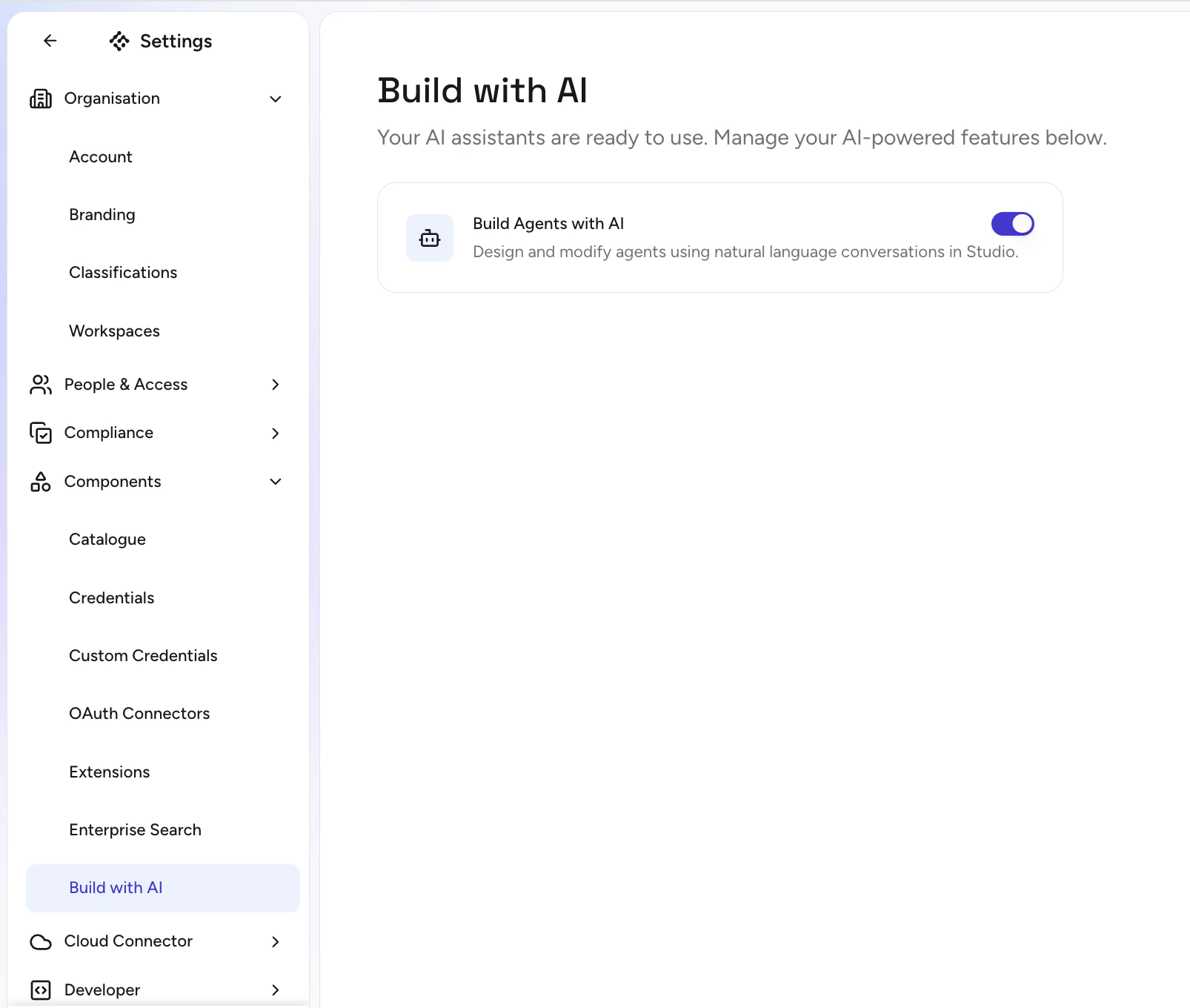
⚠️ Important The Build Agents with AI tenant toggle can only be changed by Platform Admin and Admin users.
Enabling Build Agents with AI for a Tenant
🔐 Permissions Only Platform Admin and Admin users can enable or disable Build Agents with AI for the tenant.To enable the feature:
- Go to Settings in the Airia platform.
- Open the Build with AI page.
- Turn on the toggle Build Agents with AI.
- Activate the Build and Edit with AI chat in Agent Studio for your tenant.
- Allow any user who can access Agent Studio to use Build with AI in draft mode, subject to their existing Agent Studio permissions.
Using Build Agents with AI in Agent Studio
Draft-Only Editing
The Build with AI chat is available only in draft mode:- ✅ You can build and edit draft versions of agents.
- ❌ You cannot modify published versions via the AI chat.
- Open the agent in Agent Studio.
- Switch or navigate to its draft version.
- Use the Build with AI chat from there.
Starting the Build with AI Chat
- Navigate to Agent Studio.
- Open the agent you want to build or improve (draft).
- Use the Build with AI chat, available from the left navigation controls on the canvas.
- Start with a new idea and ask the AI to design the workflow.
- Ask questions about your existing configuration.
- Request changes or improvements to the current design.
What the Airia Agent Understands
The Airia Agent is domain- and platform-aware. It understands:- Your project configuration
- Existing components and steps in the agent
- Which step types Agent Studio currently supports
- How to map your requirements to best-practice patterns in Airia
- Choosing the right step types for your use case
- Suggesting routing and branching patterns
- Proposing guardrails, validation, and error-handling flows
- “Walk me through how this agent currently routes conversations.”
- “Explain what each step does and where data is stored.”
- “Recommend a better structure for this workflow given we want stricter approval.”
Troubleshooting & Debugging
The Airia Agent is particularly good at troubleshooting failing agent executions:- Analyze failed runs, logs, or error messages
- Suggest concrete changes to steps or configuration
- Propose additional logging, retries, or fallback paths
- “This execution failed when calling the Jira tool. What should I change?”
- “Help me debug why this branch is never triggered.”
- “Suggest improvements to make this workflow more resilient.”
Python Code Assistance
The Airia Agent can also write and troubleshoot Python code used in your workflows:- Generate new Python steps based on your description
- Propose refactors or performance improvements
- Help you debug failed Python executions
- “Write a Python step that normalizes user input and scores it from 1–5.”
- “My Python step is failing. Here’s the error—what should I fix?”
- “Optimize this Python logic for readability and reliability.”
Billing & Model Usage
As of today:- All executions in the Build with AI chat in Agent Studio are charged to the tenant.
- The system is optimized for:
- Maximum quality of the generated workflows and guidance
- Best possible experience for complex agent design and troubleshooting tasks
Models Used
We currently use a combination of:- Sonnet 4.5
- GPT 5.1
- Route specific tasks to smaller, specialized models optimized for those tasks
- Continue to tune the underlying models and instructions for quality and reliability
🔐 Important
Today, users cannot change or override the models used by Build with AI.
The feature is tightly optimized and tested with a specific setup to ensure consistent behavior across tenants.
Known Behaviors & Limitations
-
Canvas locking during AI edits
- While the Build with AI chat is actively building or modifying your workflow, the canvas is temporarily blocked from manual edits to prevent conflicts.
-
Draft-only operations
- You can only use Build with AI on draft versions. To edit a published agent, open its draft version first.
-
Model configuration
- Model selection for Build with AI is managed by Airia and cannot be customized per tenant at this time.
Best Practices
- Start with one clear objective per agent (e.g., “qualify leads,” “triage tickets”).
- Let the AI propose a first version of the workflow, then iterate instead of over-specifying upfront.
- Use the AI not just to build, but also to explain and review your workflows regularly.
- When something fails, send the error/context to the Airia Agent and let it suggest the next steps.
“Explain how this agent works and suggest improvements to make it more reliable for production use.”